Smart TV Troubleshooting
Comprehensive guides for Smart TV problems, from Wi-Fi issues to app crashes and software errors.
Wi-Fi & Network Issues
Common Wi-Fi Problems in Smart TVs
- Connection Drops: TV disconnects from Wi-Fi randomly
- Slow Speeds: Buffering and low quality streaming
- Network Not Found: TV can't see available networks
- Authentication Errors: Incorrect password or security issues
Troubleshooting Tip
Try these steps in order: Restart your router, forget and reconnect to the network, update TV firmware, or use a wired Ethernet connection for testing.
Advanced Solutions
- Change DNS Settings: Use Google DNS (8.8.8.8) for better performance
- Adjust Router Channel: Try different Wi-Fi channels to reduce interference
- Update Router Firmware: Keep your router updated
- Check IP Address: Verify DHCP settings are correct
Important
If your Smart TV uses Wi-Fi 5 or 6, ensure your router supports the same standard for optimal performance.
App Problems
Common App Issues in Smart TVs
- Apps Not Opening: Clicking on apps does nothing
- App Crashes: Apps close unexpectedly
- Freezing: Apps become unresponsive
- Update Errors: Apps fail to update
Troubleshooting Tip
Clear app cache and data from the TV settings. Uninstall and reinstall problematic apps. Check for TV system updates.
Specific App Solutions
- Netflix: Clear cache, check DNS, or reinstall
- YouTube: Update app, clear cache, check internet connection
- Amazon Prime: Update firmware, reinstall app
- Disney+: Check time/date settings, update app
Software & Firmware Updates
Software Update Problems
- Update Fails: Error during firmware installation
- Stuck Update: TV freezes during update
- Corrupted Firmware: TV won't boot after update
- Slow Performance: TV becomes sluggish after update
Safety Note
Never turn off your TV during a firmware update. Interrupting an update can permanently damage your TV's software.
Update Best Practices
- Always use a stable internet connection
- Download updates through the TV's official settings
- Wait for the update to complete fully
- After update, restart the TV
- Check for additional updates after restart
Streaming Problems
Common Streaming Issues
- Buffering: Video pauses to load
- Quality Drops: Resolution decreases suddenly
- Audio Sync: Sound doesn't match video
- Streaming Errors: Error codes during playback
Troubleshooting Tip
Check your internet speed (minimum 25 Mbps for 4K streaming). Close other apps using network resources. Use a wired Ethernet connection when possible.
Related Smart TV Articles
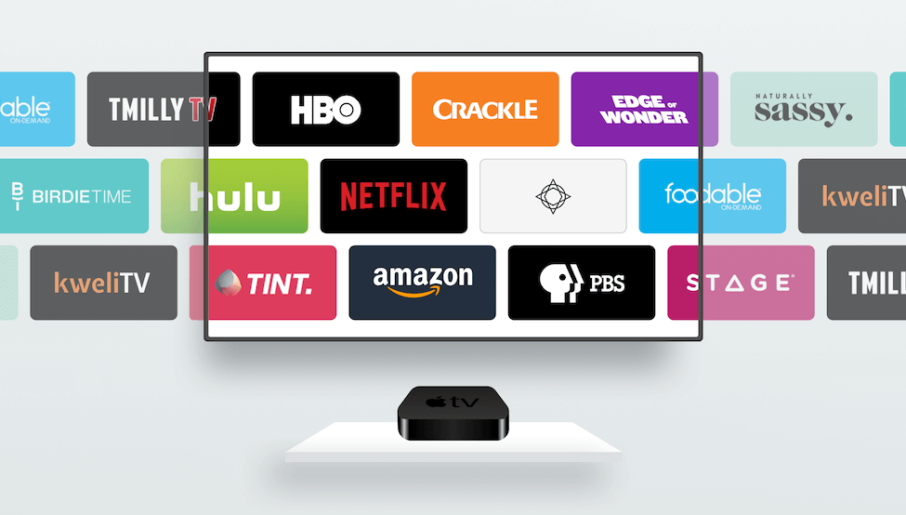
MyTV Code Guide - Activate Prime Video on Your TV
Complete guide to using the MyTV activation code. Learn how to activate Prime Video on Smart TVs, Fire Stick, and streaming devices with step-by-step instructions and troubleshooting tips.
Read Article
LG TV Has Picture But No Sound - Complete Troubleshooting Guide
Fix LG TV sound problems with this comprehensive guide. Learn about audio settings, external speakers, HDMI ARC issues, and hardware failures.
Read Article